Scoring Your First Water Polo Game
Before you keep score at your first water polo game, you can practice in QuickCap. Nothing you enter in practice mode goes to the club or to anyone watching.
Somebody asked at the end of practice, and you said yes: you’re keeping score on Saturday.
The hard part usually isn’t the rules. It’s using a screen you’ve never touched, in real time, while the game keeps moving. QuickCap’s practice mode lets you get familiar with that screen first, at home, where it doesn’t matter.
How to open it
In the Rostered mobile app, open the QuickCap tab, then the gear menu, then Practice Mode.
You don’t need a scheduled game or a scorekeeper role. You do need to be signed in, and your club needs QuickCap turned on. If you don’t see the QuickCap tab, ask your club.
If you belong to more than one club, switch to the club that uses QuickCap before you start.
A short run-through
-
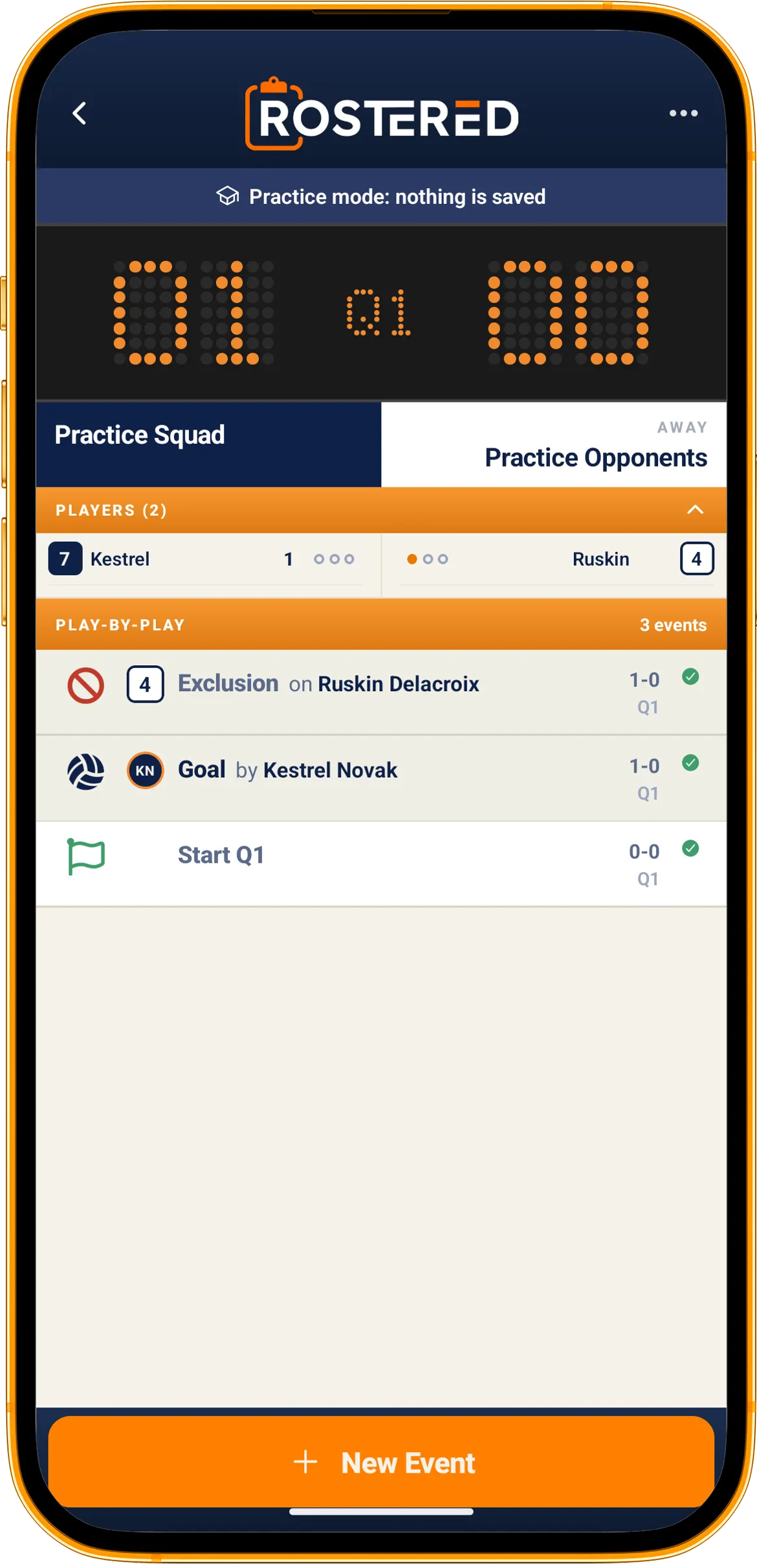
Start. QuickCap tab, gear menu, Practice Mode. You’ll see a 0–0 scoreboard in the first quarter, an empty PLAY-BY-PLAY list, and a New Event button.
-
Score a few events. Tap New Event and record a goal. Record one for the other team, then try an exclusion. The goal is just to learn where things are.
-
Fix a mistake. There’s no undo button, so practice correcting an entry. Tap the event in the PLAY-BY-PLAY list, choose Edit, then Delete event, and confirm with Delete. The score updates on its own.
-
Finish or come back later. To finish, open the ⋯ menu at the top of the scoring screen and choose End Practice. If you close the app instead, your practice is kept on your phone. Next time you open Practice Mode, choose Resume to continue or Start Clean to begin again.
What practice mode doesn’t do
The banner at the top of the screen says “Practice mode: nothing is saved”. While you’re in practice mode:
- Nothing you enter goes to the club.
- Families and spectators don’t see it, and nobody gets a notification.
- Nothing counts toward any athlete’s stats.
- A real game someone else is scoring isn’t affected.
The one thing that stays is your own unfinished practice, on your phone, until you choose End Practice or Start Clean.
Water polo only, for now
QuickCap scores water polo: quarters, exclusions, penalties, and the rest of the game’s events. If your club plays another sport, this guide won’t apply yet.
On the day
If you have a few minutes before warm-ups, open Practice Mode and run through it once more. Then switch to the real game. The buttons will be in the same places.
Practice mode is in the Rostered mobile app from version 1.13.0.