Import a High School Roster From a Spreadsheet
Map the columns you already have, see the families before they exist, and decide yourself when anyone gets emailed. Rostered's importer takes CSV, TSV and JSON, and sends nothing until you say so.
Most high school programs have the roster long before they have a system to put it in. It is a file from the athletic office, a school export, last season’s list with this season’s names typed over the top.
Getting that file into the season is not hard because the data is missing. It is hard because an import is difficult to undo quietly. Create the athletes twice and somebody has to merge them. Group two siblings into separate families and the household sees a confusing version of the season. Get a guardian’s email wrong and that family simply stops hearing from you, and nobody finds out until somebody misses a bus.
So the importer is built around one idea: show the admin exactly what is about to happen, and send nothing to anybody until they say so.
Map what you have
Upload CSV, TSV or JSON. The importer works out the format rather than asking you to declare it, then shows you your file’s columns next to the fields it can fill.
What you can map onto: athlete first and last name, email, date of birth, gender, graduating year and current school; two guardians with names, emails, phones and relationship; plus any custom athlete fields your club defined under Club Data, so whatever your program tracks that nobody else does still has somewhere to go.
Graduating year is required, which is the one place the importer is opinionated. For a high school roster it is also the most useful column in the file. It is what lets a division show a student as a freshman or a senior later instead of describing every selected underclassman as playing up.
A default for the column your file does not have
Plenty of school exports are missing something every row needs. One graduating year for the whole file. The same school for everyone. No gender column at all.
Rather than making you open the spreadsheet and add a column, you can set a default that applies to every row.
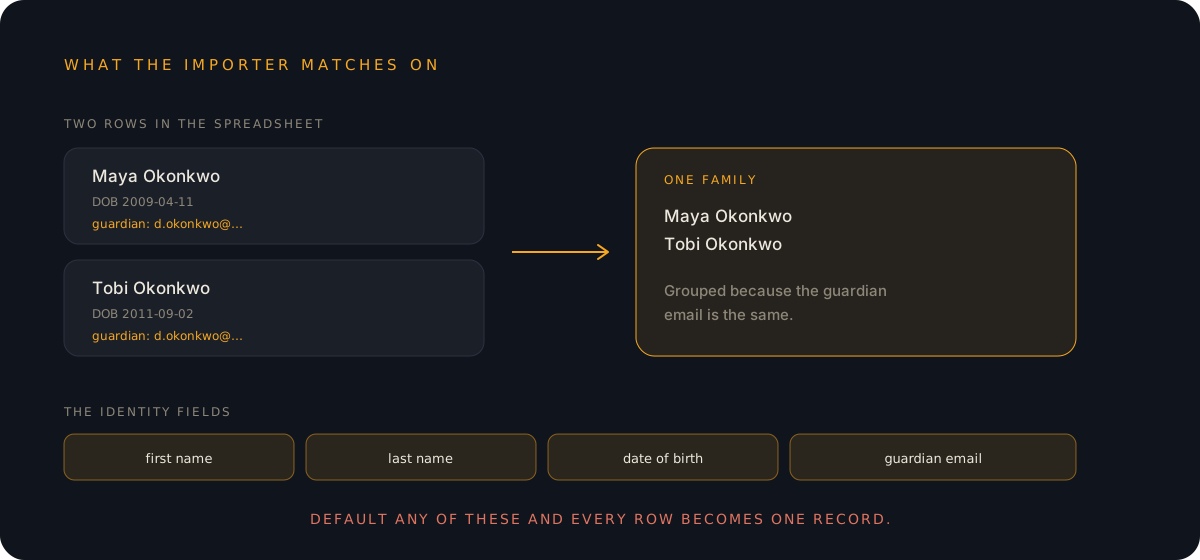
Three of those fields will quietly ruin the import, and the importer says so at the moment you would do it rather than afterwards. Put a default on first name, last name or date of birth and every row starts describing the same athlete, so a file of sixty becomes one. Put one on a guardian email and every athlete in the file lands in a single family, because that is how families are grouped. Put one on athlete email and only the first athlete keeps it, because one club cannot have two athletes logging in as the same address.
Those warnings live on the server, next to the rules that cause them, rather than in the screen that happens to display them. It is a small thing that decides whether the warning is still right in a year.
See the families before they exist
Mapping is not importing. The step in between is a preview of the families the file will produce, which you can edit before anything is created.
This is the step that earns its place. Roster data becomes communication data the moment the season starts, so the review is not really about the roster. It is about who is going to get emailed, at which address, about which child.
What makes a second import safe
School rosters arrive more than once. The updated file in October is the normal case, not the exception.
Two rules make that safe, and they are worth knowing because they explain what the importer can and cannot recognize:
Athletes are matched on first name, last name and date of birth. The same three values mean the same athlete, so re-importing a file does not create a second copy of anyone.
Families are grouped by shared guardian email. Two athletes whose files list the same guardian address land in the same family, which is how siblings end up in one household rather than two, and how an existing family gets recognized instead of duplicated.
That is also why a default on any of those four fields is destructive: they are the identity. Everything else is detail.
Nobody gets emailed until you send them
This is the part that decides whether an import is safe to run twice.
When the importer creates an athlete login invitation, it creates it held. The invitation exists, the account is ready, and no email has gone anywhere. They are flushed later, deliberately, once the import has committed and you have looked at it.
Held invitations show up in the club’s unsent invitations list, alongside guardian invitations rather than in some separate place you have to know about. You can see who is waiting, and send them when you are ready. Setup Mode’s go-live step sends both kinds, so athlete invitations do not sit stranded after a club opens for the season.
And “sent” means sent. An invitation counts as unsent until an email has actually left the system, so the screen cannot tell you a family was contacted because a database row was created. That distinction is enforced where the invitations are stored, not written into a label that someone has to keep true.
If you are importing a roster of teenagers, that matters more than it sounds. The gap between “I have loaded the roster” and “I have told sixty families about this” should be a decision you make, not a side effect of uploading a file.
What this is not
This is roster and family import. It is not a migration service, and it does not claim to understand every legacy system a school has ever bought.
It does not invent data either. If your file has no date of birth, the importer cannot match athletes on it, and you should expect to do more reviewing in the preview step. A careful import of a thin file is still better than typing it, but it is not the same job as a careful import of a good one.
What it does is take the file you already have, show you the families it would create, let you fix them, and hold every email until you decide it is time.
Rostered is free for every parent and athlete, and clubs start at $9 a month. See what’s free, look at the packages, or start your club.